Support center
How users report product issues, submit support requests, and confirm successful ticket creation.
Contact the AssureGrid support team when users encounter platform issues, defects, or behavior that requires investigation.
Left navigation panel > Support Center
Complete the Submit a Request form and send the request to the support team.
A success confirmation modal appears after the request is submitted.
Overview
The Support Center provides a direct path for users to reach the AssureGrid support team when something is not working as expected. It is designed for issue reporting and operational support, allowing users to capture the problem, indicate urgency, and submit enough context for the team to investigate efficiently.
From the current interface, the Support Center experience is centered on a single request form. The page lets users enter a contact email, write a subject line, choose a severity value, provide a detailed message, optionally add supporting documentation through the upload panel, and then submit the request. After submission, the user receives an on-screen confirmation that the request has been received and that follow-up will continue by email.
When to use the Support Center
-
Report a bug or defect: Use the page when a feature behaves incorrectly, produces an error, or does not complete the expected action.
-
Escalate a workflow issue: Use it when an issue prevents work in a control inventory, audit workspace, documentation area, admin function, or another product area.
-
Request investigation of unexpected results: Use it when data, calculations, outputs, or generated content appear inconsistent with what the workflow should produce.
-
Share a reproducible issue with evidence: Use the request form when you can provide the exact context, steps, and files needed for the support team to reproduce the problem.
Accessing the page
-
Open AssureGrid and review the left navigation panel.
-
Select Support Center from the lower portion of the sidebar.
-
The page opens with the heading Support Center and the main content area displays the Submit a Request form.
Screen walkthrough: Submit a Request page
The first screenshot shows the complete request-entry screen. The form is laid out in a simple top-to-bottom sequence so users can supply the minimum support details in one place before submitting the ticket.
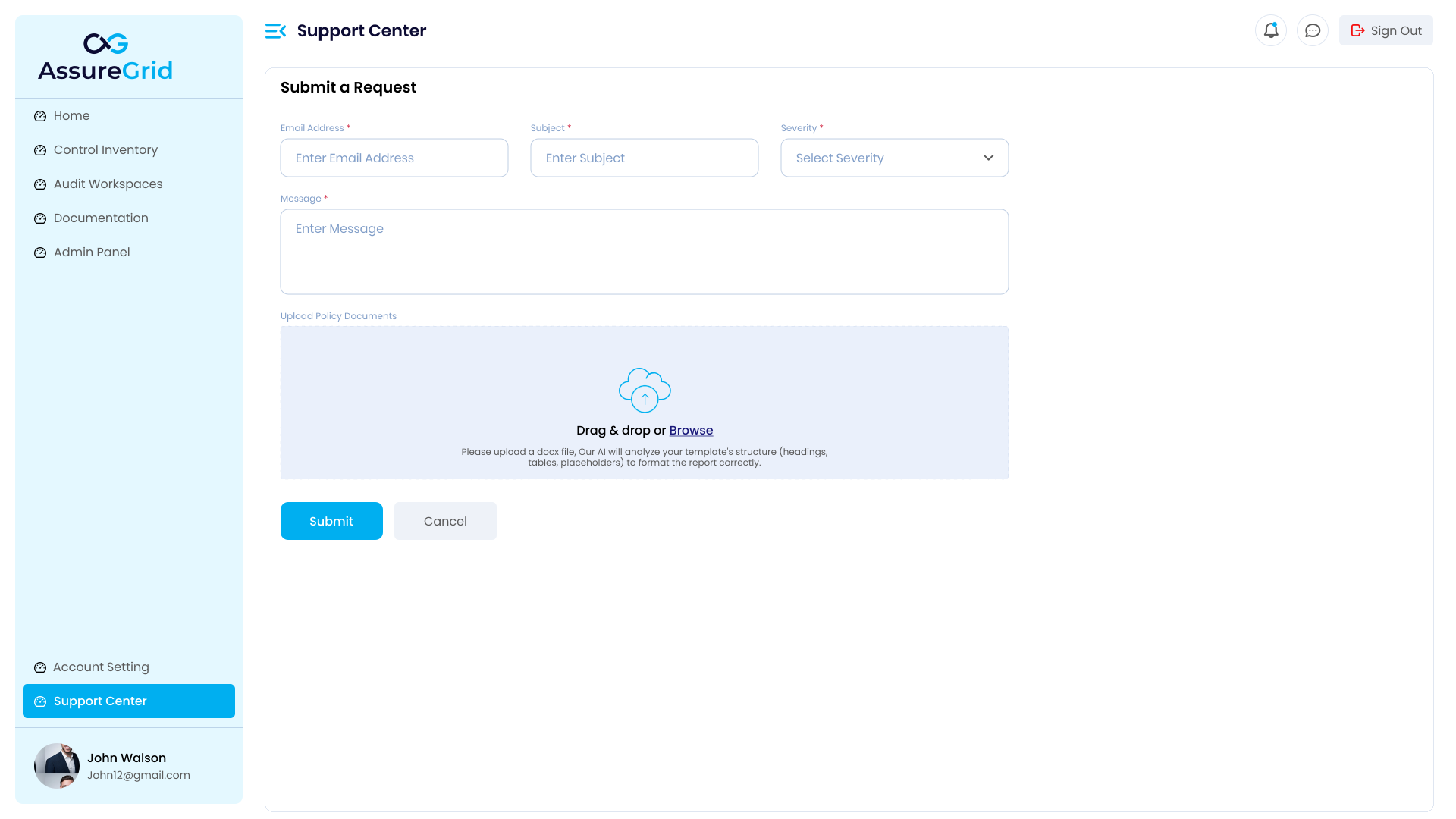
Field-by-field reference
The table below documents the visible controls on the page and explains how each one should be used when preparing a high-quality support request.
| Field / Control | Required | What it does | Recommended user guidance |
|---|---|---|---|
| Email Address | Yes | Captures the email address associated with the request so the support team knows where to respond. | Use a monitored inbox. This should be the address where status updates, clarifying questions, and resolution notes can be received. |
| Subject | Yes | Provides a short headline for the issue. | Write a concise summary that identifies the problem immediately, for example the feature affected and the visible symptom. |
| Severity | Yes | Lets the requester classify the urgency or business impact of the issue. | Choose the value that best reflects how broadly the issue affects users and whether work can continue. |
| Message | Yes | Captures the detailed description of the issue. | Include what happened, what was expected, where the issue occurred, and the exact steps needed to reproduce it. |
| Upload panel | Optional | Allows supporting documentation to be added from the page itself. The current UI labels the area as Upload Policy Documents and shows drag-and-drop / Browse behavior. | Use this area when additional evidence will help the support team investigate. The helper text visible in the interface references .docx upload support. |
| Submit | Action | Sends the completed request to the support process. | Use this after confirming the contact details, issue summary, severity, and message are complete. |
| Cancel | Action | Stops the request process before submission. | Use this when you need to leave the page or stop the request before sending it. |
Recommended submission workflow
-
1. Confirm your contact email. Enter the email address that should receive support responses and request updates.
-
2. Write a precise subject line. Summarize the issue in one line so the support team can triage it quickly.
-
3. Select the appropriate severity. Indicate the urgency or impact level that best matches the issue you are experiencing.
-
4. Describe the issue in the message box. Document the exact behavior, affected page or module, expected outcome, and any steps already attempted.
-
5. Add supporting documentation when useful. If evidence or structured context exists, attach it through the upload area shown on the page.
-
6. Submit the request. Select Submit to send the issue to support and wait for the confirmation message to appear.
What makes a strong ticket The highest quality requests are specific, reproducible, and easy to triage. Good tickets clearly describe the affected module, user action, expected result, actual result, timing, and business impact.
Best practices for users
-
Be specific about location. Name the feature, page, workflow step, or module where the issue occurred.
-
Describe expected versus actual behavior. This helps support distinguish configuration issues from true product defects.
-
Explain business impact. Clarify whether the issue is a minor inconvenience, a repeated defect, or a blocker that stops audit work.
-
Keep the subject line short. Put the most important identifying terms first so the issue is easy to scan in a queue.
-
Attach supporting context when available. Include additional evidence when it materially improves troubleshooting.
-
Use the confirmation as a checkpoint. A successful request should end with the confirmation modal; if that modal does not appear, the user should verify whether the request actually submitted.