Audit report generation overview
How AssureGrid prepares audit reporting inputs, generates a draft report, and supports structured review through section controls, version management, AI assistance, inline editing, and final download.
Overview
Audit Report Generation is the module where AssureGrid transforms audit inputs into a structured report draft that users can review, refine, and finalize. Rather than starting from a blank document, the module uses source materials already created during the audit lifecycle and packages them into a report-generation workflow designed for speed, consistency, and controlled editing.
This stage sits close to the end of the workflow, which makes it especially important for accuracy and version awareness. Users are not just generating text; they are shaping the final reporting artifact that may be reviewed internally, shared with stakeholders, or distributed as the formal output of the audit.
Generation setup and source inputs
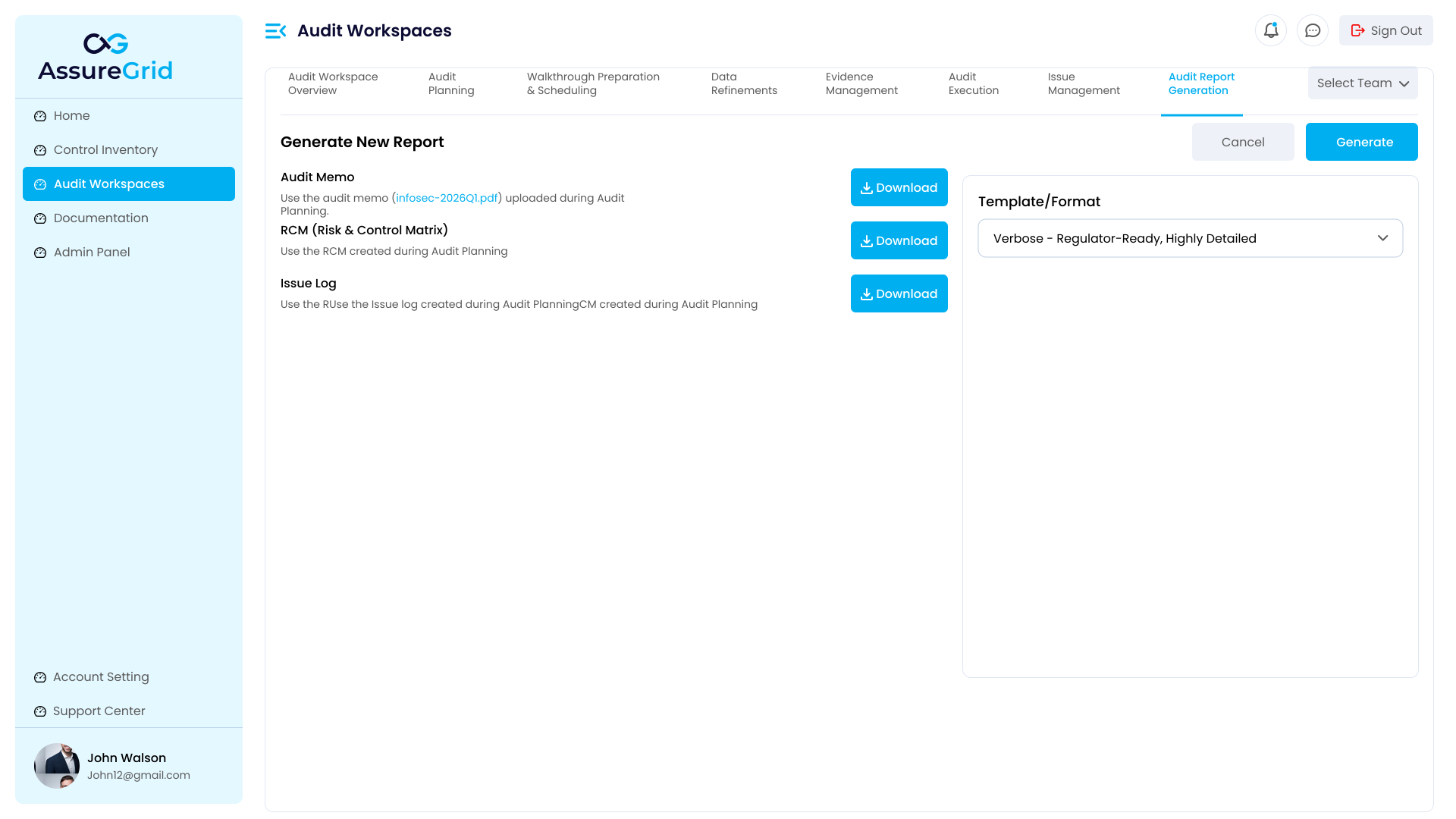
The first stage of the module is the report setup screen. Here, users can see the materials being used to build the report and confirm that the correct source inputs are attached before generation begins. In the interface shown below, Audit Memo, RCM, and Issue Log are surfaced with download actions so users can validate the source material directly from the report-generation step.
What the setup screen supports
| Area | How it is used |
|---|---|
| Audit Memo | Provides narrative and contextual material that can inform executive sections and reporting language. The download action helps users verify the exact memo being used as an input. |
| RCM | Surfaces the control matrix used during audit planning so that report content can stay aligned to the control and testing structure already established earlier in the workflow. |
| Issue Log | Brings in the issue output created during Issue Management so report findings can reflect the reviewed issue record rather than an isolated draft. |
| Template/Format | Lets users choose the report style or format that should guide the generated output. This helps shape structure, tone, and reporting detail before the draft is produced. |
Configuring sections and generating the report
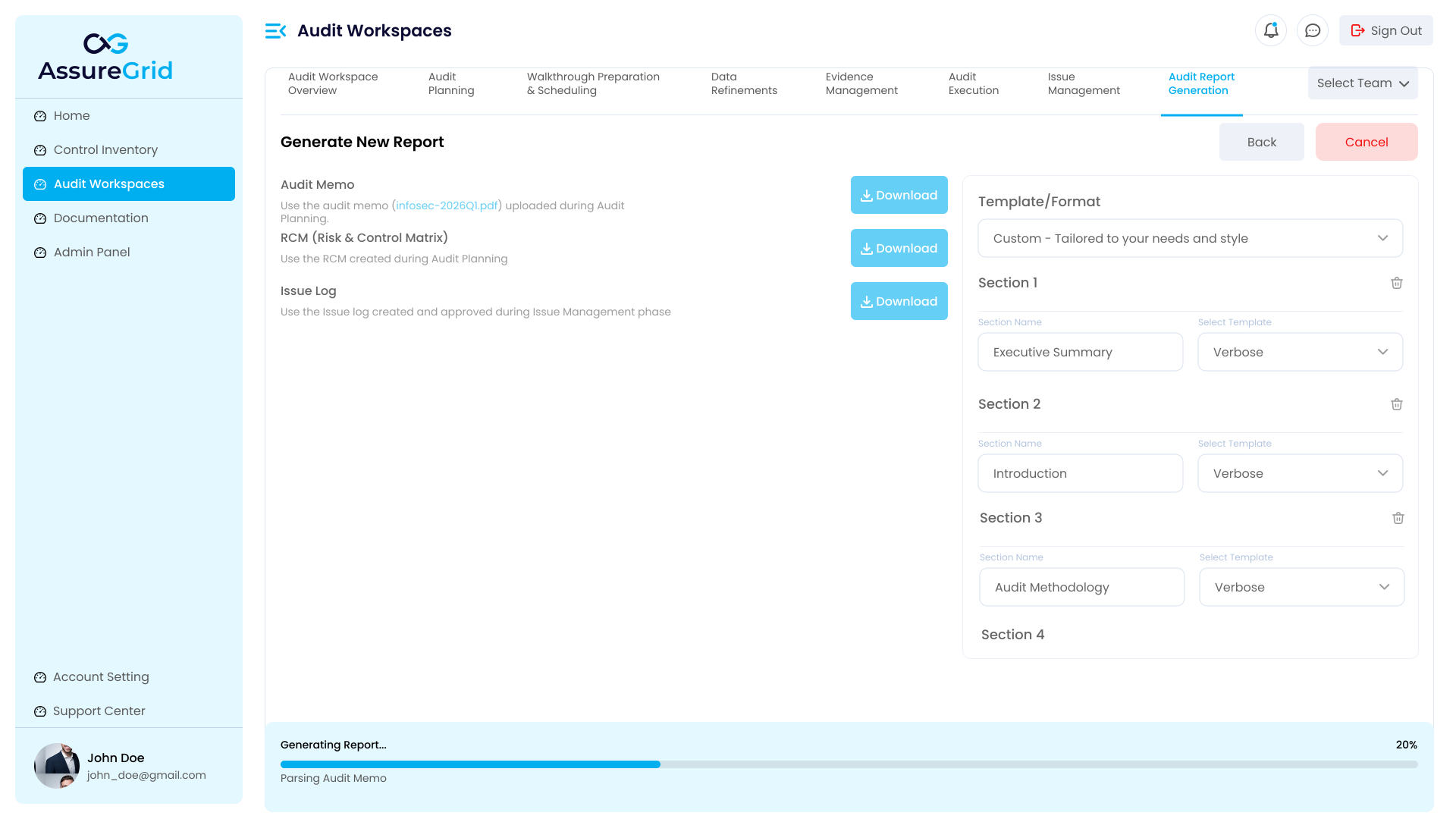
After the base setup is confirmed, the module supports more detailed configuration of the report. Users can tailor the overall format and also define section-level structure, including section names and template choices. This makes the workflow more flexible than a single preset report template and helps teams align the generated draft to the reporting style they need.
| Generation behavior | Why it matters |
|---|---|
| Section-level naming and templates | Allows users to shape the composition of the draft by assigning section labels and selecting how those sections should be rendered. |
| Progress visibility | Makes it clear that report creation may involve processing time and that users should wait until generation is complete before treating the result as ready. |
| Back and Cancel controls | Support controlled navigation during setup rather than forcing the user to restart the module if the configuration needs to change. |
Reviewing the generated report
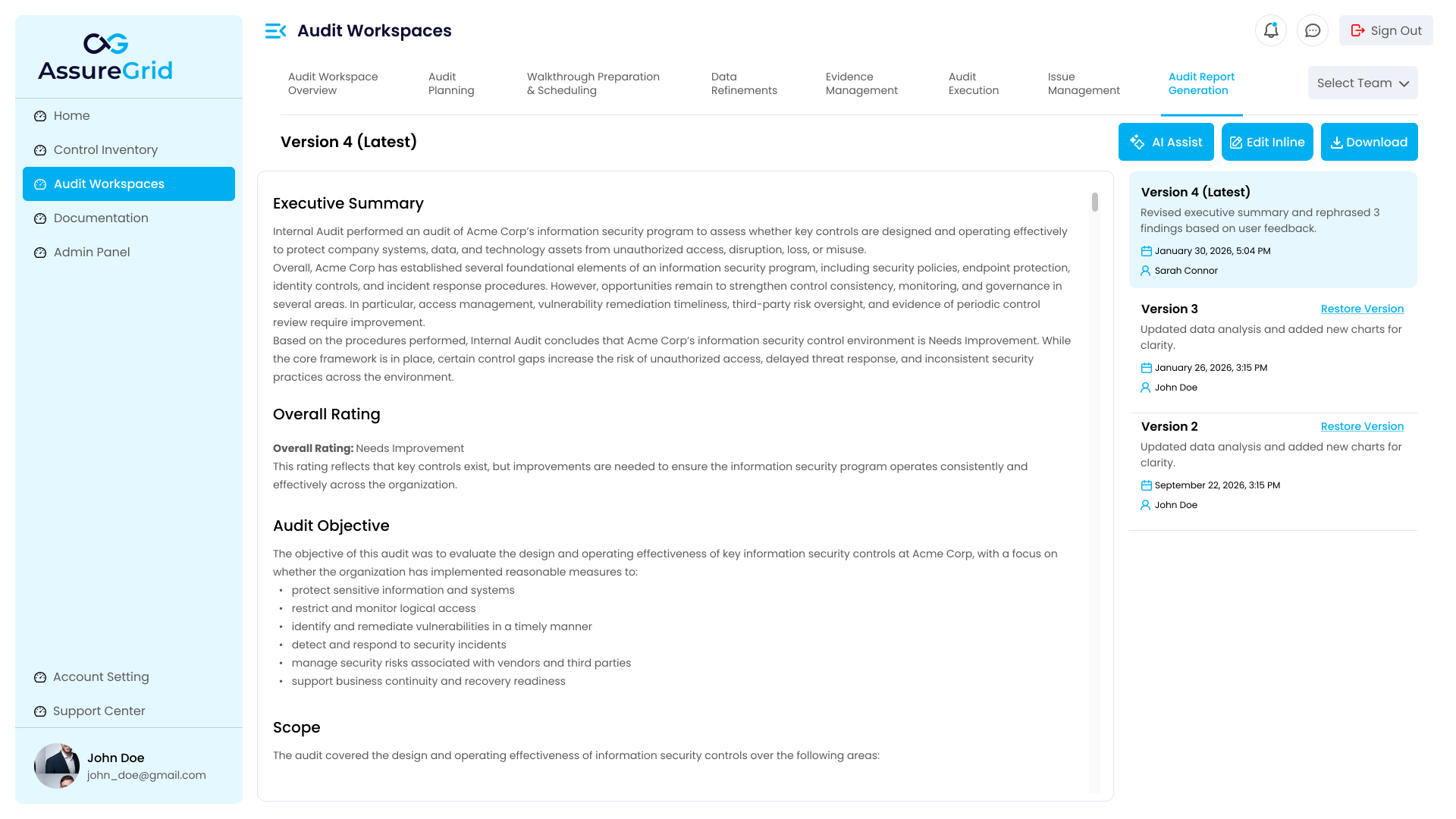
Once the draft is generated, the module shifts from setup into a review workspace. The central pane displays the current report content, while the right-side panel tracks report versions. This creates a strong editing model: the user can focus on the visible report while still seeing whether the active version is the latest, what changed in prior versions, and when a restore action may be appropriate.
Key controls in the generated report workspace
| Control | Purpose |
|---|---|
| Version panel | Shows the latest report version and earlier versions, giving users a record of iterations and a mechanism for comparing or restoring prior states when needed. |
| Restore Version | Lets users reactivate an earlier version when a later edit should be rolled back or when a prior draft more closely matches the intended report state. |
| Edit Inline | Allows direct manual refinement in the report workspace for cases where the user wants precise control over wording or structure. |
| Download | Exports the active report so users can circulate, archive, or prepare the final deliverable after confirming that the visible version is the intended one. |
AI-assisted editing and refinement
Audit Report Generation also supports AI-assisted rewriting inside the report workspace. In the example below, the AI panel opens as a chat-style assistant alongside the report content, allowing the user to request targeted improvements such as rewriting a section summary. This is especially helpful when the report needs clearer language, more concise phrasing, or tighter section-level polish.
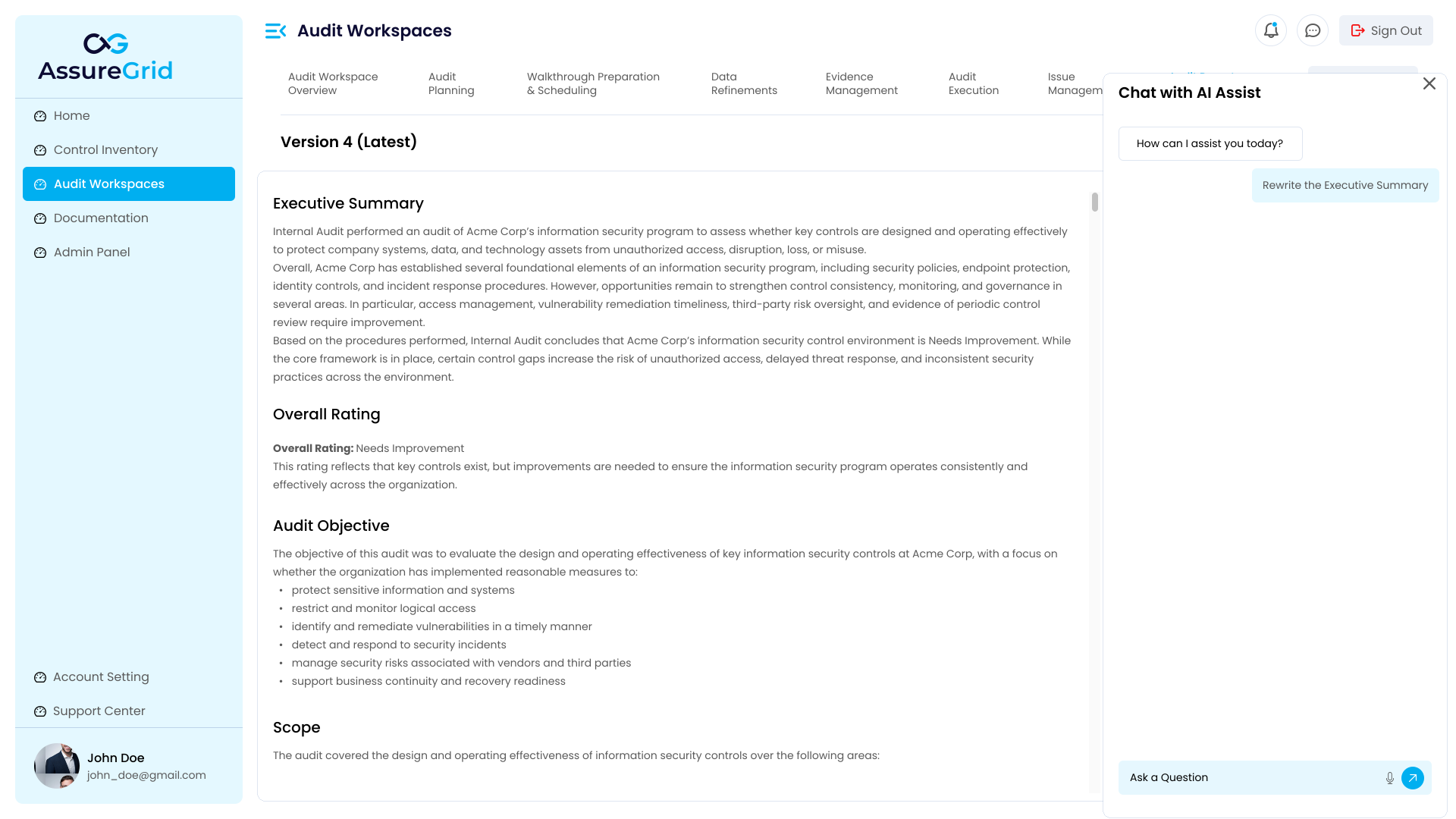
The important control boundary remains the same as in other AssureGrid AI workflows: AI can help propose better wording, but users still decide what becomes part of the saved report. The most reliable working pattern is to use AI to accelerate drafting and polish, then validate the result manually and preserve version control discipline so that the active report stays trustworthy.
AI usage guidance Use AI assistance to improve clarity, tone, and concision, but review the active report carefully before downloading or treating the output as final. A polished suggestion is still a suggestion until the user accepts it as the intended report content.