Control Inventory Management Overview
Overview of how AssureGrid creates, reviews, and refines audit-ready control inventories.
Control Inventory Management enables teams to create a new inventory from policy and procedure documents or optimize an existing inventory for improved quality, clarity, and coverage. The module is designed to accelerate control documentation while preserving user review and editorial control.
The Control Inventory module is the starting point for turning process documentation into a structured set of risks and controls that can be used throughout the audit lifecycle. Users can launch a new inventory build from source documents, refine an existing inventory, monitor background processing, and then review or edit results before passing them downstream to planning, execution, and reporting.
How the module fits into the audit workflow
Control Inventory Management sits upstream of several other AssureGrid capabilities. The inventory created or refined here becomes the foundation for later activities such as audit planning, evidence alignment, workpaper preparation, issue mapping, and report generation. A well-structured inventory helps ensure that later stages start from a clean, consistent representation of the control environment.
-
Define the workspace and scope for the inventory activity.
-
Choose whether to generate a new inventory or optimize an existing one.
-
Provide the required inputs, such as policy documents, audit context, or an existing control list.
-
Run the background job and monitor progress through the processing queue.
-
Review the resulting inventory table, including control, risk, domain, and reasoning fields.
-
Use AI assistance and manual edits to refine rows before accepting the final reviewed state.
Core capabilities
-
Create a control inventory from policy and procedure documents and related audit context.
-
Improve an existing inventory for better wording, clearer coverage, and stronger alignment to process and risk.
-
View progress of generation and optimization jobs in a dedicated processing queue.
-
Review a post-inventory list that organizes records into a structured table for downstream use.
-
Use AI chat to ask questions about the inventory or request refinements to the current results.
-
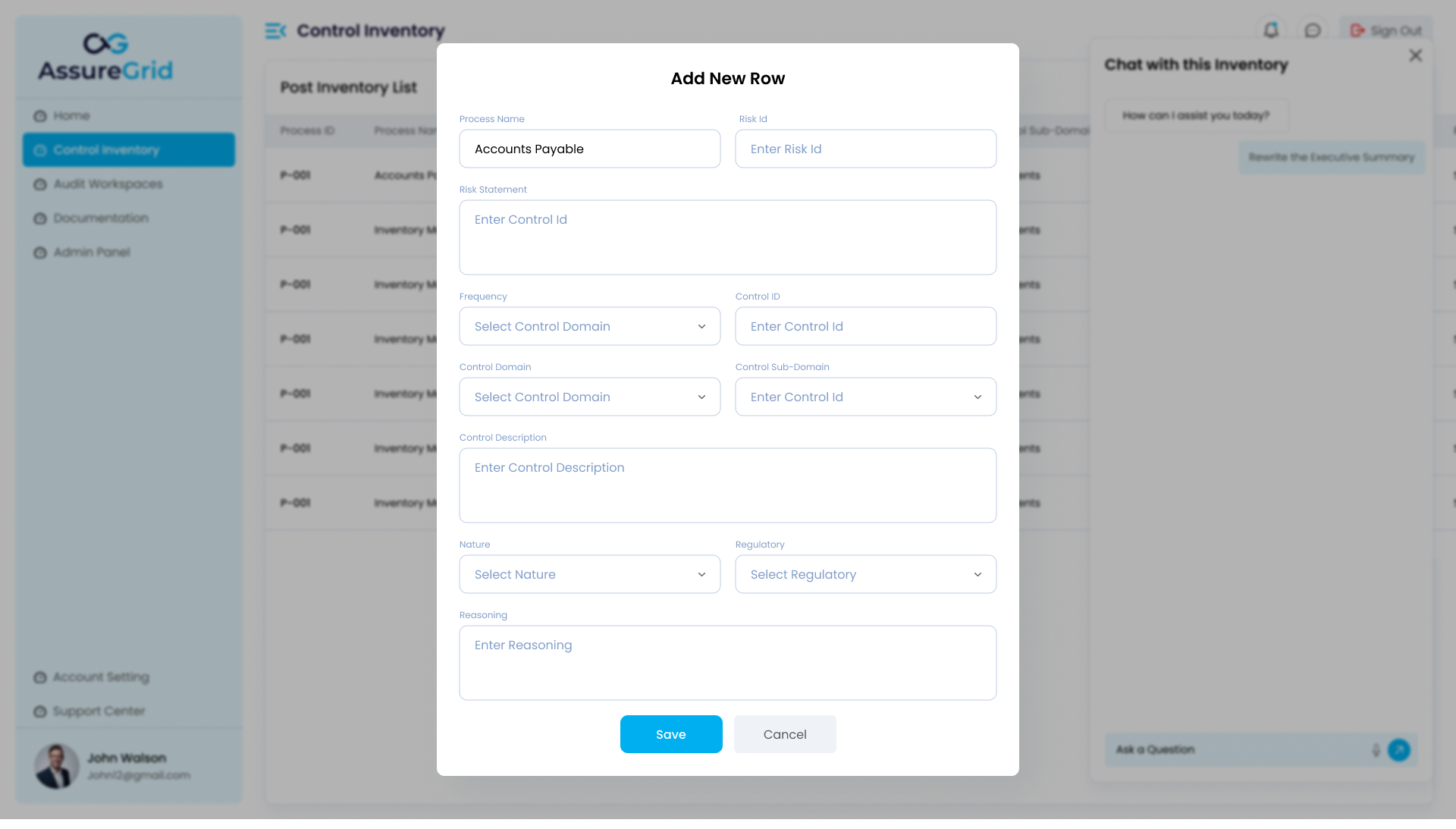
Manually add or edit rows when human judgment or offline context needs to be introduced into the inventory.
Primary data structure in the post-inventory list
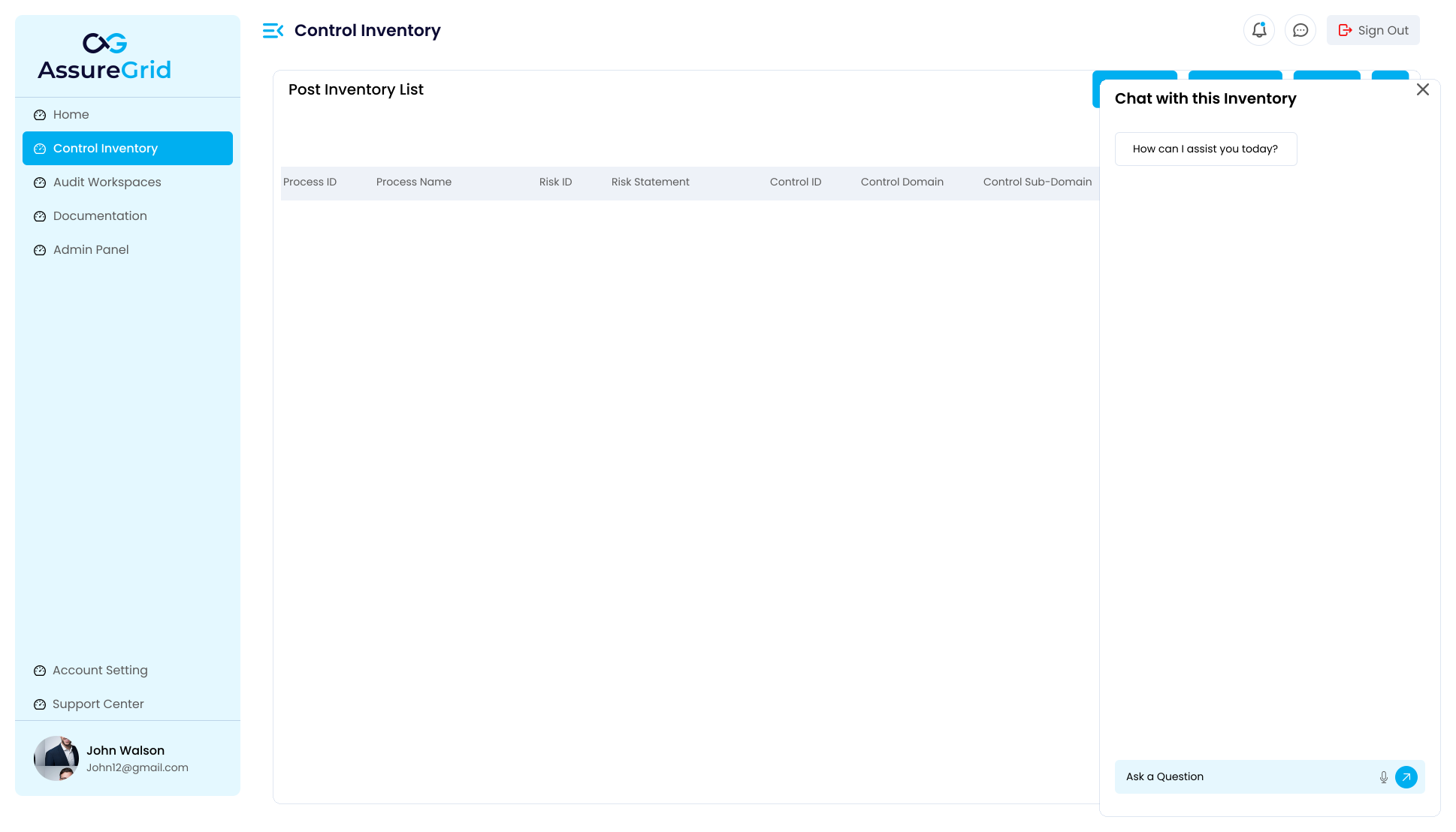
The post-inventory list is the working view used after generation or optimization completes. Based on the screenshot, the list is designed to capture both business context and audit structure in a single row-based format. Typical fields include Process ID, Process Name, Risk ID, Risk Statement, Control ID, Control Domain, Control Sub-Domain, Control Description, Nature, Regulatory, Reasoning, and Actions.
Why the structure matters: Using a consistent row design makes it easier to review coverage, identify gaps, compare similar controls, and pass the resulting inventory into later audit stages without reformatting.
AI assistance in Control Inventory
Control Inventory includes an AI chat experience that can be used while reviewing results. This allows users to ask natural-language questions about the inventory, request explanation of a row or field grouping, or ask for refinement suggestions. The AI layer is intended to support analysis and editing, not to silently replace user review.
-
Use the chat panel to request clarification on what a control or risk statement means.
-
Ask for suggestions to improve wording, consistency, or readability of the current inventory.
-
Use AI output as a review aid, then decide whether the content should be manually accepted or further edited.
-
Treat AI assistance as support for refinement rather than as an automatic approval step.
Monitoring execution through the processing queue
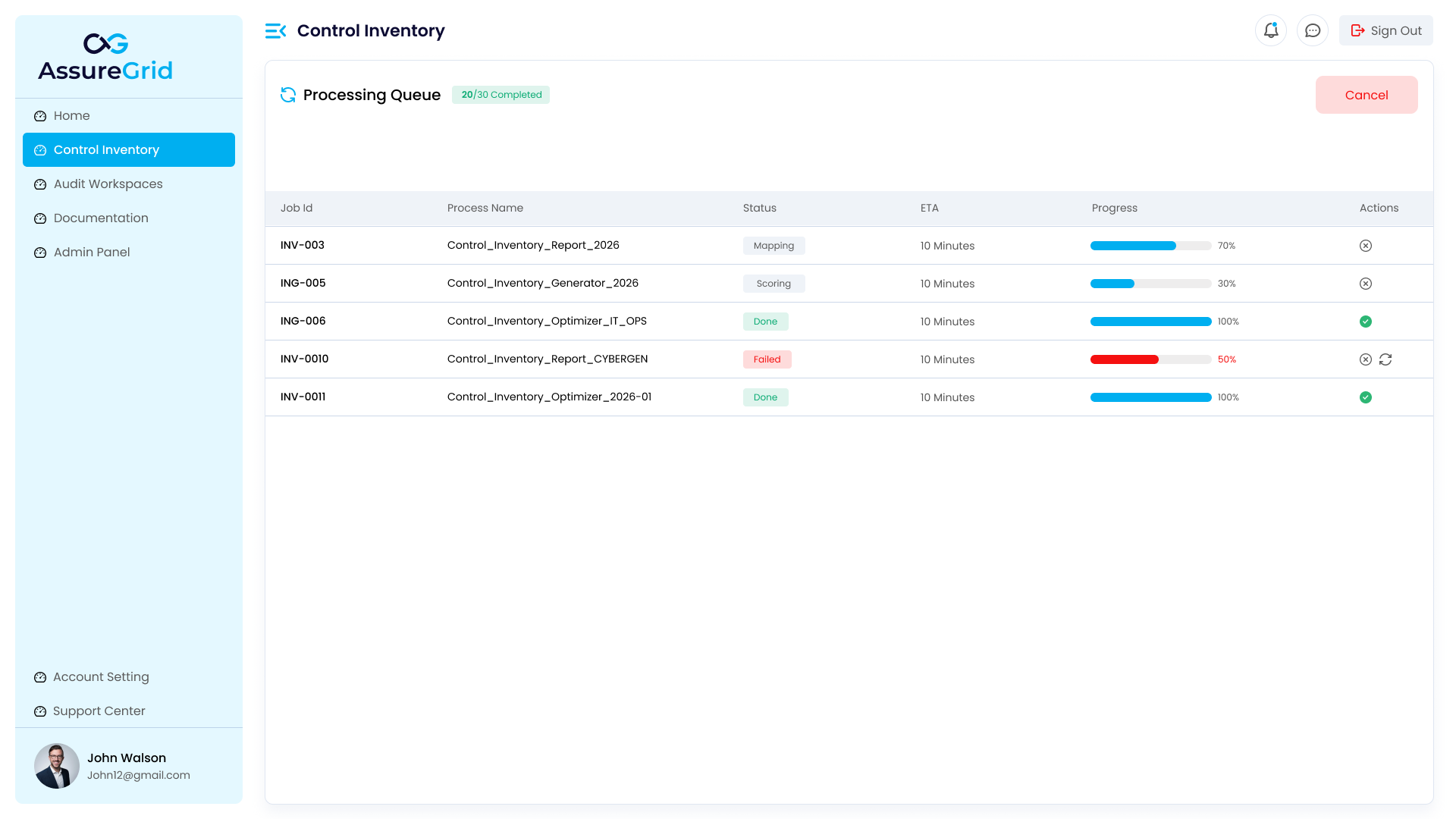
Generation and optimization are handled as queued background jobs. The Processing Queue view gives users visibility into job identifiers, process names, current status, ETA, progress percentages, and available actions. This helps teams understand whether the run is still mapping or scoring, whether it has finished successfully, or whether retry action is required.
| Column | What it tells you |
|---|---|
| Job ID | Unique identifier for the inventory process run. |
| Process Name | Human-readable name of the generation or optimization job. |
| Status | Current state such as Mapping, Scoring, Done, or Failed. |
| ETA / Progress | Expected completion estimate and current completion percentage. |
| Actions | Available action such as cancel, confirm completion, or retry if the run fails. |
Editing and human review
Even when the inventory is AI-assisted, the module is designed to remain user-governed. Reviewers can inspect the resulting table, compare control and risk statements for accuracy, and add or modify rows as needed. This is especially useful when institutional knowledge, local process variation, or offline conversations reveal details that were not fully captured in the original source documents.
Frequently asked questions
When should I use Generator versus Optimizer?
Use Generator when you are building a new control inventory from source documents. Use Optimizer when an existing inventory already exists but needs improvement in quality, coverage, or consistency.
Can I change the inventory after the run finishes?
Yes. The module supports post-run review, AI-assisted refinement, and manual row editing so users can improve the final inventory before using it elsewhere.
What is the role of the AI chat panel?
The AI chat panel helps explain or refine inventory content. It supports the user during review, but it does not replace the user's responsibility to validate the final output.
Why is the processing queue important?
The processing queue gives visibility into long-running background work so users can confirm whether a job is still in progress, has completed successfully, or needs a retry.