Evidence management overview
Evidence Management organizes audit evidence into control-specific folders, combines automated evidence capture with manual upload support, and gives auditors and control owners a structured place to review, download, and attest supporting files.
This module sits between walkthrough collection and execution readiness. It ensures evidence is stored in the correct control folder, can be reviewed in context, and remains available for attestation and downstream audit use.
Evidence Management is the central workspace for organizing supporting audit documents at the control level. AssureGrid automatically places evidence extracted from walkthrough calls into the relevant control ID folders so that auditors do not need to sort files manually after each session.
If evidence is received offline, such as by email, shared drive, or direct handoff, auditors and control owners can manually add those files into the appropriate control folder. This keeps both system-captured and manually received evidence in a single reviewable location.
How evidence moves through the module
The module combines automated evidence placement with manual controls so the final evidence record reflects both walkthrough outputs and later follow-up artifacts.
-
Evidence is captured from walkthrough activity When evidence is extracted from walkthrough calls, AssureGrid associates it with the relevant control and places it into the appropriate control ID folder.
-
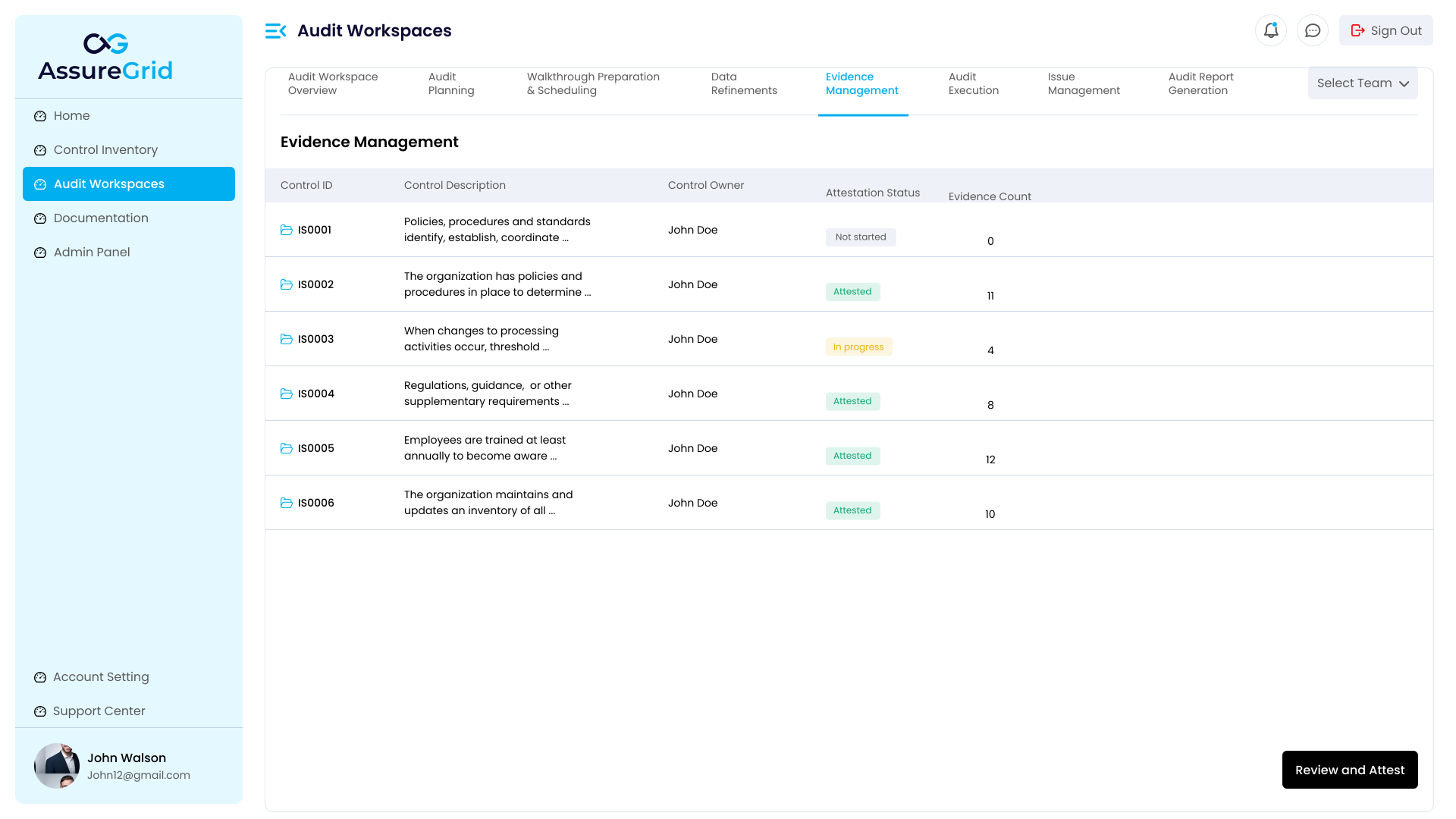
Evidence is grouped under control folders The top-level workspace shows one row per control, along with control metadata, current attestation status, and the number of evidence files currently stored for that control.
-
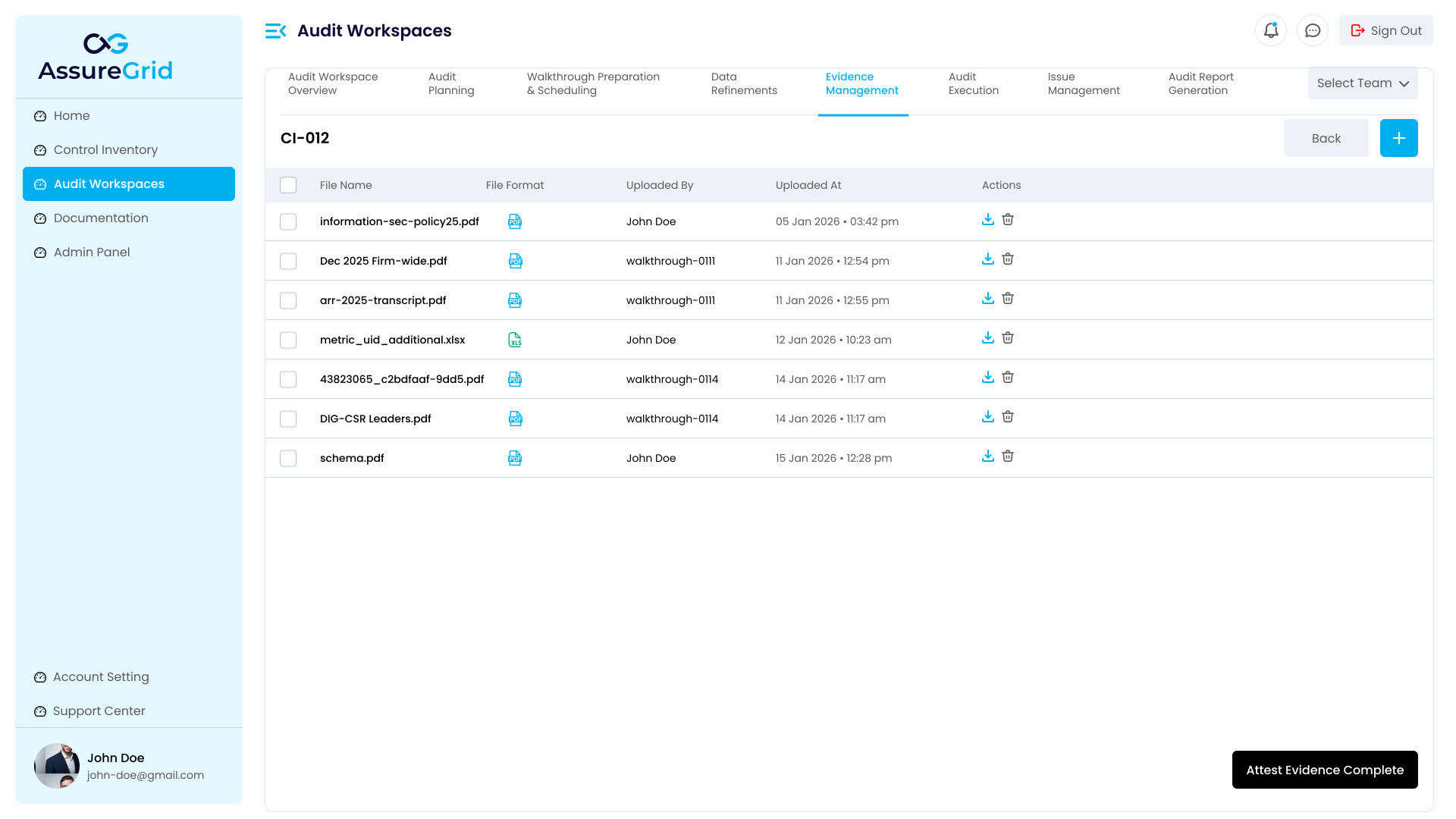
Users review the contents of each folder Opening a control folder displays the individual files stored for that control, including file name, format, upload source, upload timestamp, and file-level actions.
-
Additional evidence can be added manually If evidence was received outside the platform, auditors or control owners can add it to the same control folder so that the complete file set stays together.
-
The folder is attested when review is complete After users confirm the evidence set is complete for that control, the folder can be marked as complete through the attestation flow.
Understanding the Evidence Management workspace
The main Evidence Management page acts as the control-level directory for all evidence in the audit workspace. Each row represents a control folder and provides enough information for the user to understand review status before opening the folder.
| Field | What it tells the user | Why it matters |
|---|---|---|
| Control ID | The control folder identifier for the underlying audit control. | Provides the anchor for traceability between evidence, testing, and reporting. |
| Control Description | A short description of the control associated with the folder. | Helps reviewers confirm they are opening the correct evidence set. |
| Control Owner | The assigned owner for the control. | Clarifies ownership and helps route follow-up questions or missing evidence requests. |
| Attestation Status | Current state of review, such as not started, in progress, or attested. | Allows teams to prioritize unresolved controls and track readiness. |
| Evidence Count | The number of files currently stored in the control folder. | Quickly indicates whether a folder appears empty, partial, or well populated. |
The workspace also supports a review-and-attest flow at the module level. From here, users can move from folder identification into detailed review and then return to a broader evidence completeness view across the audit.
Managing evidence inside control folders
Once a user opens a control folder, the module shifts from control-level tracking to file-level evidence management. This is where reviewers verify that the right documents are present, confirm who uploaded them, check when they were added, and take action on individual files.
| Column or action | Description | Typical use |
|---|---|---|
| Selection checkbox | Allows one or more files to be selected in the folder. | Supports deliberate review and, where enabled, multi-file operations. |
| File Name | Shows the stored evidence file name. | Helps identify the specific artifact under review. |
| File Format | Displays the file type, such as PDF or XLSX. | Makes it easier to understand the nature of the supporting evidence. |
| Uploaded By | Shows the source or user associated with the upload. | Helps distinguish walkthrough-generated files from manual uploads. |
| Uploaded At | Provides the upload timestamp. | Supports timeline validation and follow-up on the most recent evidence. |
| Download action | Downloads the file for offline review or sharing where appropriate. | Useful when detailed file inspection is needed outside the page. |
| Delete action | Removes a file from the folder when a file was added incorrectly or should no longer be retained. | Supports cleanup and evidence hygiene under controlled review. |
| Add (+) | Adds additional evidence into the control folder. | Used when files were received offline or after the walkthrough was completed. |
| Attest Evidence Complete | Marks the folder as complete once evidence review is finished. | Confirms that the control’s evidence set is ready for the next stage. |
Manual upload use case Manual upload is especially important when evidence arrives outside the workflow that originally generated the control folder. Instead of keeping those files in email or shared folders, users can place them directly into the correct control folder so the audit record remains centralized and complete.
Review, completeness, and attestation
Evidence Management is not only a storage layer; it is also a review checkpoint. The attestation indicators shown at the control level help teams understand which folders still need attention and which ones are ready to move forward.
A practical reading of the statuses shown in the workspace is straightforward:
-
Not started: evidence has not yet been reviewed or attestation has not begun.
-
In progress: the folder is being reviewed, evidence may still be incomplete, or additional follow-up items may still be pending.
-
Attested: the evidence set for that control has been reviewed and marked complete.
Users should treat attestation as a confirmation of completeness and readiness, not as a substitute for judgment. Before attesting a folder, reviewers should confirm that the evidence is relevant to the control, that the latest materials are present, and that any offline or follow-up documents have already been added.
Recommended review pattern Open the control folder, verify that the file list matches the control objective, add any missing offline evidence, remove incorrect files where appropriate, and attest only after the folder reflects the final intended evidence set.
Frequently asked questions
What is the purpose of Evidence Management in AssureGrid?
It provides a structured workspace for organizing evidence by control, combining automatically extracted walkthrough evidence with manually added files in one control-level record.
Who can use this module?
The module is intended for auditors and control owners who need to review evidence, add offline documents, validate completeness, and attest when a control folder is ready.
How does automated evidence placement work?
Evidence extracted from walkthrough activity is associated with the relevant control and placed into the matching control ID folder so users can review it without manual sorting.
Can users add evidence manually?
Yes. If supporting evidence is received outside the platform, users can add it into the appropriate control folder so the full evidence set remains centralized.
What should users check before attesting a folder?
They should confirm that the evidence is relevant to the control, that the expected supporting files are present, that any offline evidence has been added, and that incorrect or outdated files have been addressed.
Why are upload source and timestamp shown in the folder view?
These fields help users understand where a file came from, when it was added, and whether it is the most current supporting evidence for the control.
What is the difference between the top-level workspace and the inside-folder view?
The top-level workspace helps users monitor status across controls, while the inside-folder view is used to inspect and manage individual evidence files for a specific control.