Control Inventory Generation
Guide to creating a new control inventory from policy and procedure documents.
The Generation workflow helps users build a structured control inventory from source documentation and audit context. It is intended for situations where the team wants an AI-assisted starting point rather than beginning with a blank control list.
Control Inventory Generation is designed for the early stages of audit preparation, when policy and procedure documents need to be converted into a structured set of processes, risks, and controls. In AssureGrid, the generation workflow combines workspace setup, input document management, background processing, and post-run review.
Generation at a glance
Policy and procedure documents, plus audit context such as team, scope, and framework.
A structured post-inventory list that can be reviewed, refined, and used across later audit stages.
Generation runs through a processing queue so users can track job status and completion.
Users define the context, review the generated results, and refine the final inventory as needed.
Step 1: Provide generation inputs
Users select the Generator path and provide the source materials. The screenshot shows a Generator/Optimizer choice, an upload area for policy documents, and supporting configuration areas such as topics or focus areas and regulations. The Uploaded Documents modal also shows that users can review the source file list and manage the documents that will feed the run.
Input quality matters: The clearer and more relevant the source documents are, the better the generated inventory will be as a starting point for review. A screenshot of the Uploaded Documents modal will be added here.
-
Upload the policy and procedure files that best represent the control environment you want modeled.
-
Review the uploaded document list to confirm that the correct files are included.
-
Use available topic, focus area, and regulation fields to steer the generation toward the intended subject matter.
-
Remove irrelevant or duplicate files before running generation so the output remains focused.
Step 2: Run the generator and monitor progress
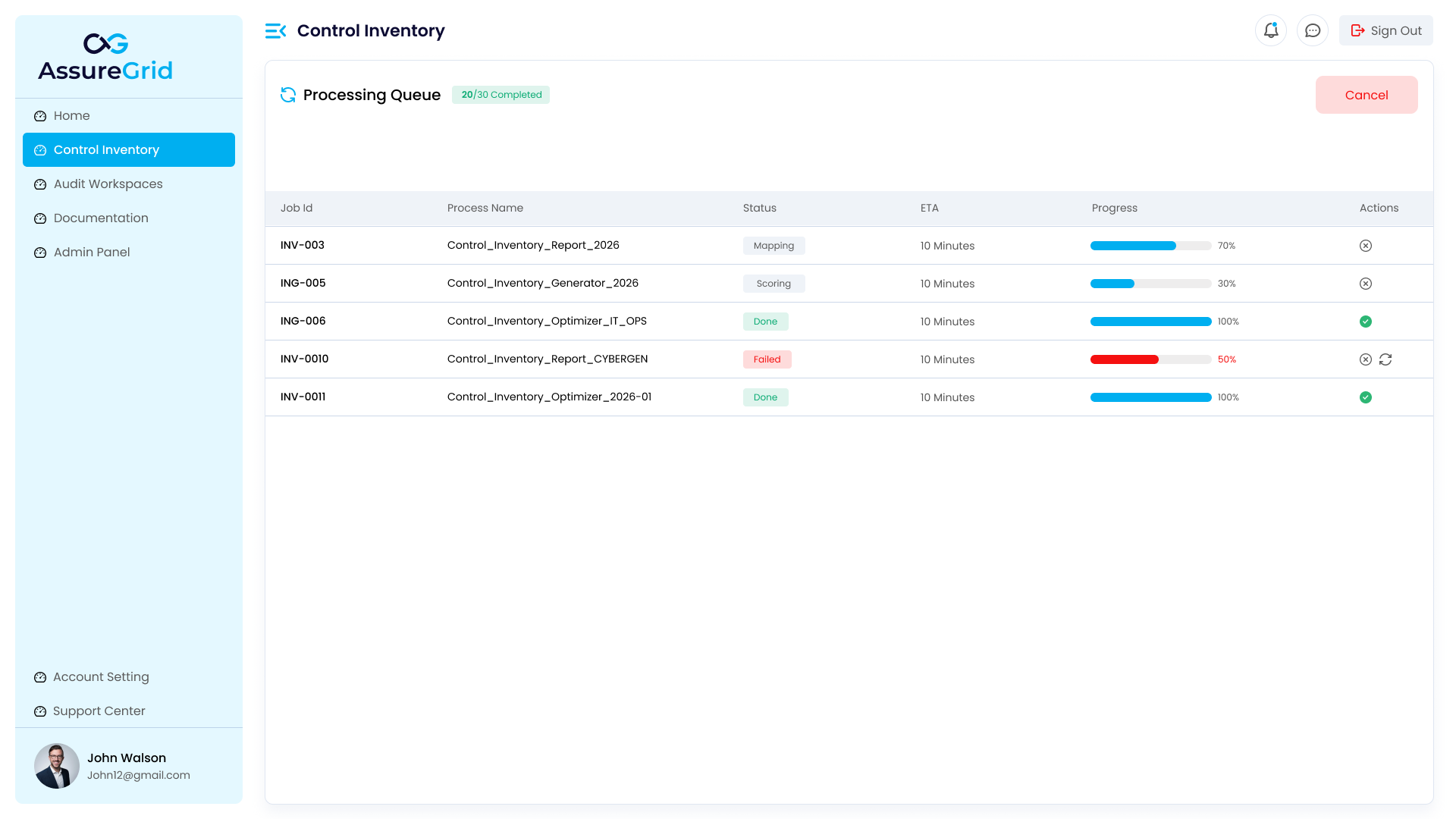
After the required inputs are in place, generation runs asynchronously in the background. The Processing Queue gives users a clear operational view of each job, including its identifier, name, status, ETA, progress percentage, and action controls. This is where teams can confirm whether the run is still processing, has completed successfully, or needs a retry.
Step 3: Review the generated inventory
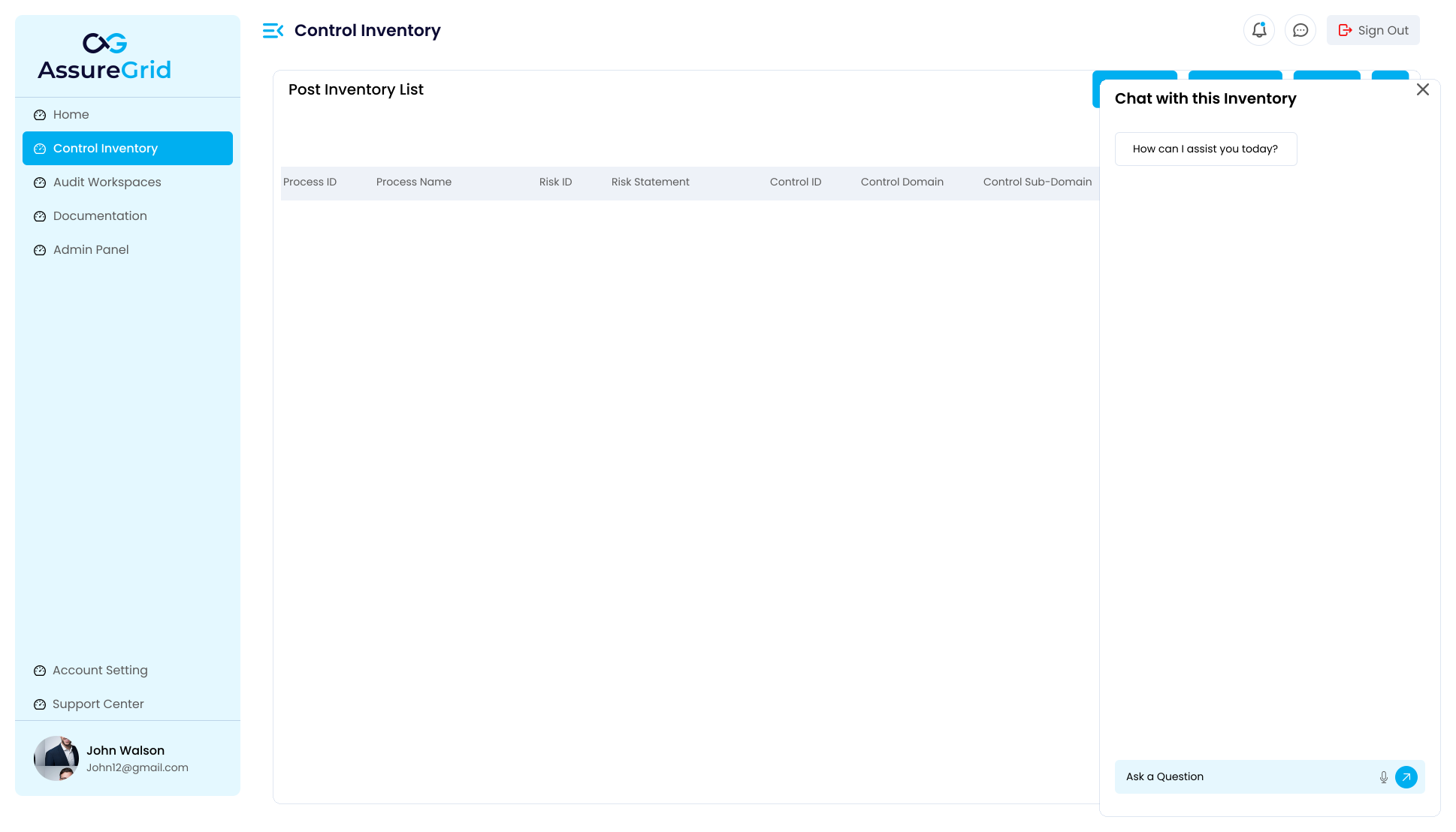
Once the queue indicates completion, users move into the post-inventory list to review the generated rows. This is where the output stops being a background process and becomes a working artifact. Users can inspect how the generator translated source content into structured risk and control records, identify gaps or duplicates, and improve wording before the inventory is used elsewhere.
-
Check whether the generated rows match the intended process scope.
-
Validate that control and risk statements are specific enough for later planning and testing.
-
Use AI chat to ask targeted questions or request refinement suggestions for the current inventory.
-
Apply manual edits if generated rows need stronger business context or clearer control descriptions.
Recommended generation workflow
-
Upload and verify the source documents that represent the control environment.
-
Run generation and monitor progress from the processing queue.
-
Open the resulting post-inventory list once the job is complete.
-
Review the output for clarity, coverage, duplicates, and classification quality.
-
Use AI assistance and manual edits to produce a final reviewed inventory.
Frequently asked questions
What is the purpose of the Generator option?
The Generator option creates a new control inventory from source materials such as policy and procedure documents, rather than starting from an existing inventory.
Why do I need to review uploaded documents before running generation?
Reviewing the document list helps confirm that the right source materials are included and that irrelevant or duplicate files are not shaping the output.
What should I do if the processing queue shows a failed job?
Investigate the run, verify the inputs, and use the available action controls to retry or relaunch the process as appropriate.
Is the generated inventory final as soon as it appears?
Not necessarily. The generated inventory should be reviewed, refined, and edited where needed before it is treated as the final inventory state.