Workspace overview dashboard
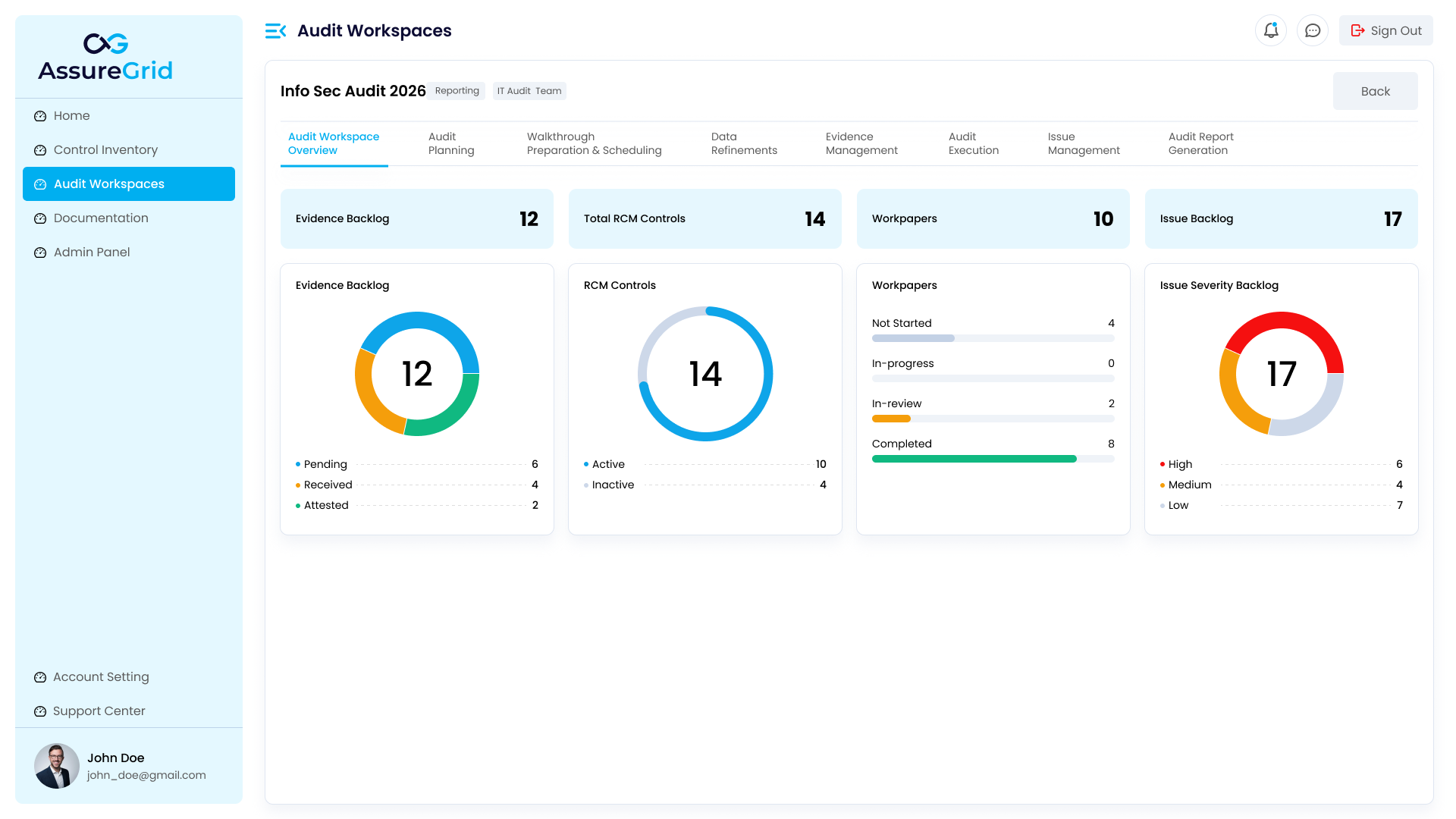
A summary of the current audit engagement — progress, metrics, stage status, and context — all in one place before entering detailed workflow stages.
Purpose
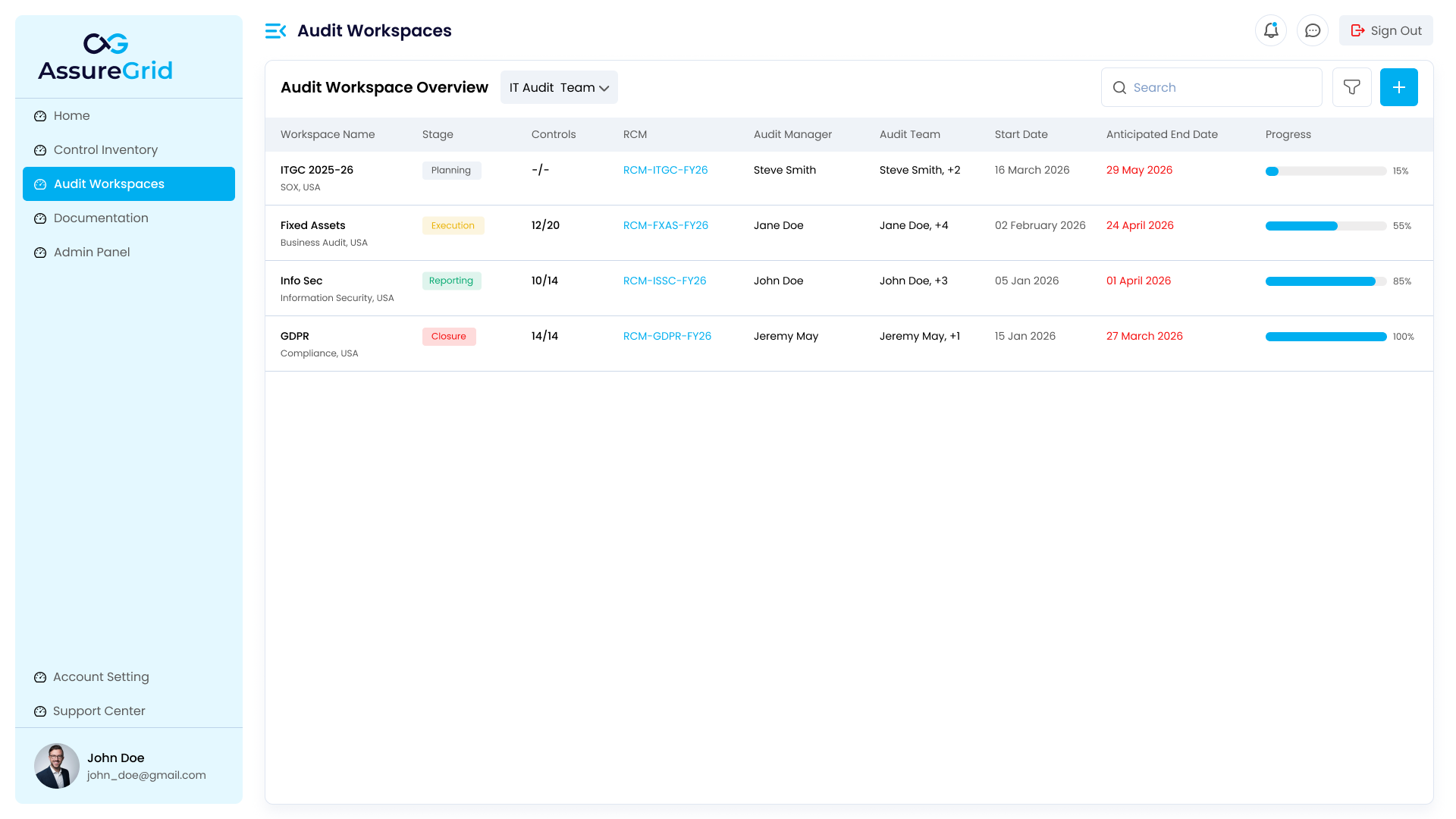
The Workspace Overview Dashboard gives users a summary of the current audit engagement inside a specific workspace. It provides visibility into audit progress, planning status, execution readiness, issue signals, and general engagement context. This page helps users understand the overall state of the audit before moving into detailed workflow stages.
For an audit lead or reviewer, this is the fastest readiness check in the workspace.
When to Use the Workspace Overview
Use the workspace overview when you want to:
-
understand the current state of an audit
-
check high-level progress across the workspace
-
identify whether the audit is blocked or ready for the next stage
-
review summary metrics before entering planning, evidence, execution, or reporting
-
get a quick picture of the engagement without opening each module individually
What the Overview Dashboard Represents
The dashboard is a summary layer for the workspace. Instead of working directly on rows, evidence files, or workpapers, the dashboard helps users answer questions such as:
-
How far has this audit progressed?
-
Which stages are complete or still active?
-
How many controls, workpapers, or issues are in play?
-
Where should the team focus next?
Information Shown on the Dashboard
Depending on the workspace configuration, the overview dashboard may include the following types of information:
| Information Type | Description |
|---|---|
| Workspace identification details | Workspace name, audit topic, entity or region, framework, and current stage. |
| High-level stage progress | Indicators showing which lifecycle stages are complete, in progress, or pending. |
| Audit summary metrics | Counts and summary values for controls, workpapers, evidence, and issues. |
| Charts or visual widgets | Graphical summaries such as severity distributions and progress breakdowns. |
| Pending review indicators | Flags or counters for items that require user action or attestation. |
| Severity summaries | Breakdown of open issues by severity level. |
| Trend or backlog views | Views showing audit progress over time or work still requiring completion. |
Dashboard Areas
Workspace Context Header
The header usually confirms the following details and helps users verify they are in the correct engagement before taking action:
-
workspace name
-
audit topic
-
entity or region
-
framework
-
current stage
-
team selection where applicable
Summary Cards or Counters
The overview may include cards or counters showing values such as:
-
total controls
-
total workpapers
-
evidence items or folders
-
open issues
-
high-severity issues
-
attestation progress
-
completed versus pending stages
These values are designed to provide quick situational awareness.
Charts and Visual Widgets
The dashboard may also include charts or visual summaries such as:
-
issue severity distribution
-
workpaper or execution progress
-
stage completion breakdown
-
audit backlog or review status
These visual elements help users quickly spot risk concentration or work imbalance.
Why the Dashboard Matters
The overview dashboard is useful because it turns detailed workflow data into a manageable summary. Instead of manually checking every stage, users can use the dashboard to determine:
-
whether work is progressing normally
-
whether there are incomplete areas
-
whether the audit is ready to move forward
-
whether issue or evidence volume needs attention
Using the Dashboard Before Entering a Stage
A recommended workflow before moving into any lifecycle stage is:
- Open the workspace.
- Review the dashboard context and metrics.
- Check the current stage and progress indicators.
- Identify any obvious blockers or missing review steps.
- Move into the next relevant lifecycle tab.
Why this matters This approach helps avoid entering a downstream module before the prior stages are truly ready. The dashboard acts as a decision and navigation surface, not the main editing area.
Moving from Dashboard to Lifecycle Stages
From the workspace overview, users typically move into the following lifecycle tabs to perform detailed work. The dashboard gives context; the lifecycle tabs are where detailed work happens.
| Lifecycle Stage | Typical Activity |
|---|---|
| Audit Planning | Reviewing and confirming planning outputs such as the RCM, test steps, and evidence list. |
| Walkthrough Preparation & Scheduling | Coordinating and scheduling walkthrough activities. |
| Data Refinements | Reviewing AI-generated suggestions against original data. |
| Evidence Management | Uploading and organizing evidence files linked to controls. |
| Audit Execution | Completing workpaper review, testing documentation, and sign-off. |
| Issue Management | Tracking, resolving, and managing identified issues. |
| Audit Report Generation | Drafting and finalizing the formal audit report. |
What Users Should Look for First
When opening a workspace overview, users should first confirm:
-
the correct workspace name
-
the current lifecycle stage
-
whether the audit is still in planning, in execution, or near reporting
-
any visible issue spikes or unfinished activities
-
whether the team context is correct
Example Dashboard Use Cases
The following table illustrates how different users typically interact with the workspace overview dashboard:
| User | Goal | How the Dashboard Helps |
|---|---|---|
| Planning Lead | Confirm planning outputs are ready | Determines whether walkthroughs can be scheduled. |
| Evidence Reviewer | Check control progression | Sees whether enough controls have reached evidence collection. |
| Audit Manager | Assess overall audit health | Reviews open issues, stage progress, and readiness for reporting. |
- Review the overview before entering detailed workflow tabs.
- Use the dashboard as a stage-readiness check.
- Monitor issue and workpaper counts regularly.
- Confirm the correct team context before taking action.
- Use the overview as the portfolio snapshot for engagement review meetings.